
Teams, brands and reviews
how agencies and clients work together.
The parts of the studio built for agencies: client review links, templates, bulk videos from a spreadsheet, brand kits with locks, and team roles. Which of them a workspace gets depends on its plan.
01Client reviews
Send a client one version of a video. They watch it, pin comments to moments of the video and approve it or ask for changes, without an account (src/server/routes/review.ts). Needs the plan's "Client review links".
- Make the link On the Renders page, "Send for review" on a finished render, or Client reviews, "New review link", and pick the render. The link shows that exact version.
- Send it Copy the link and send it to your client. Anyone with the link can watch this version, comment and approve it; they see nothing else of the workspace.
- Read the comments They appear on the review's page, pinned on the timeline, and in notifications (and by e-mail when e-mail is set up).
- Fix and resend Mark each comment done once it is fixed, render again and send a new link for the next version.
You can revoke a link at any time; the comments stay. The operator sets how many comments one address may post per hour (30) and after how many days links stop working (30) in Settings, Client review.
02Templates
Templates starts a video from a finished one: same scenes, look and timing, your own words. The gallery shows two kinds:
- Templates of this workspace: made with "Save as template" from a video's menu on the Videos page. Rename, edit or delete them.
- Templates from this studio: starting points the operator adds in the console's Templates page, from a video or a pasted storyboard (JSON). Every workspace sees them.
Starting from a template costs no AI credits.
03Bulk videos from a CSV
One video becomes a template, and every row of a spreadsheet makes its own copy with that row's values: a product catalogue, a list of listings, a menu per branch. No AI is involved, so the copies are free; rendering each is priced as a normal render. Needs the plan's "Many videos from a CSV".
- Add placeholders In the editor, write
{{column}}in any text, for exampleFresh {{dish}} for {{price}}. - Open Bulk in the editor's top bar.
- Paste or open the CSV A CSV with a header row; the column names match the placeholders. Up to 500 rows per run (
src/server/routes/projects.ts). - Make videos Tick "Render every video straight away" to queue the renders at once (each one costs credits like a normal render).
A sample spreadsheet ships in examples/bulk/menu-board-sample.csv with its template examples/bulk/menu-board.json.
04Brand kits and locks
Add your logo, two colours and a typeface once. Videos made with the kit use them in every scene, and its tone of voice and call to action go into each brief. Editors and owners of a workspace can make brand kits.
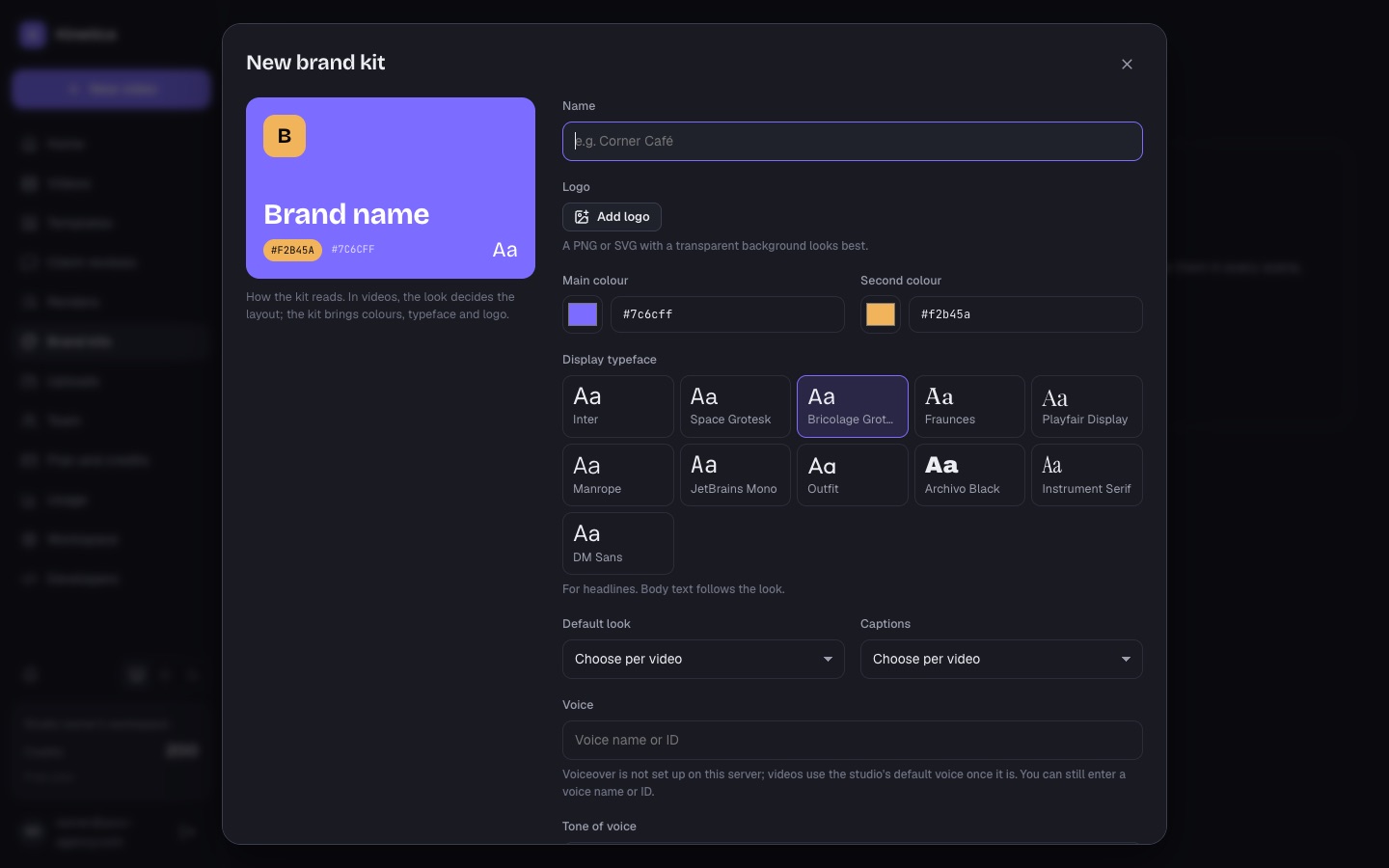
| Field | What it does |
|---|---|
| Name, logo | A PNG or SVG with a transparent background looks best (PNG, SVG, WebP or JPG). "Colours from the logo" suggests the two colours. |
| Main colour, second colour | Replace the look's accents |
| Display typeface | For headlines; body text follows the look. Inter, Space Grotesk, Bricolage Grotesque, Fraunces, Playfair Display, Manrope, JetBrains Mono, Outfit, Archivo Black, Instrument Serif, DM Sans |
| Default look, captions | Or "Choose per video" |
| Voice | The narrator for this brand's videos (ElevenLabs name or ID) |
| Tone of voice, call to action, website | Claude writes the script in this tone, with this call to action |
| How to pronounce names | For the voiceover, for example "Nguyen sounds like win" |
| Do and don't | Rules Claude follows in every storyboard and AI edit for this brand, one per line |
Lock in every video made with this kit: tick any of the look, the typeface, the colours, the logo and the caption style (LOCK_NAMES in packages/director/src/director.ts). Locked things are shown locked in the editor's Style tab, and Claude keeps them. Useful when clients or a team edit the videos.
Deleting a kit removes it from the list. Videos already made with it keep their colours and logo.
05Team roles
Each workspace has its own members. Owners invite people by e-mail on the Team page and choose their role; the invite link is e-mailed when e-mail is set up, and always shown to copy. Owners can change roles, cancel invites and remove members (their videos stay).
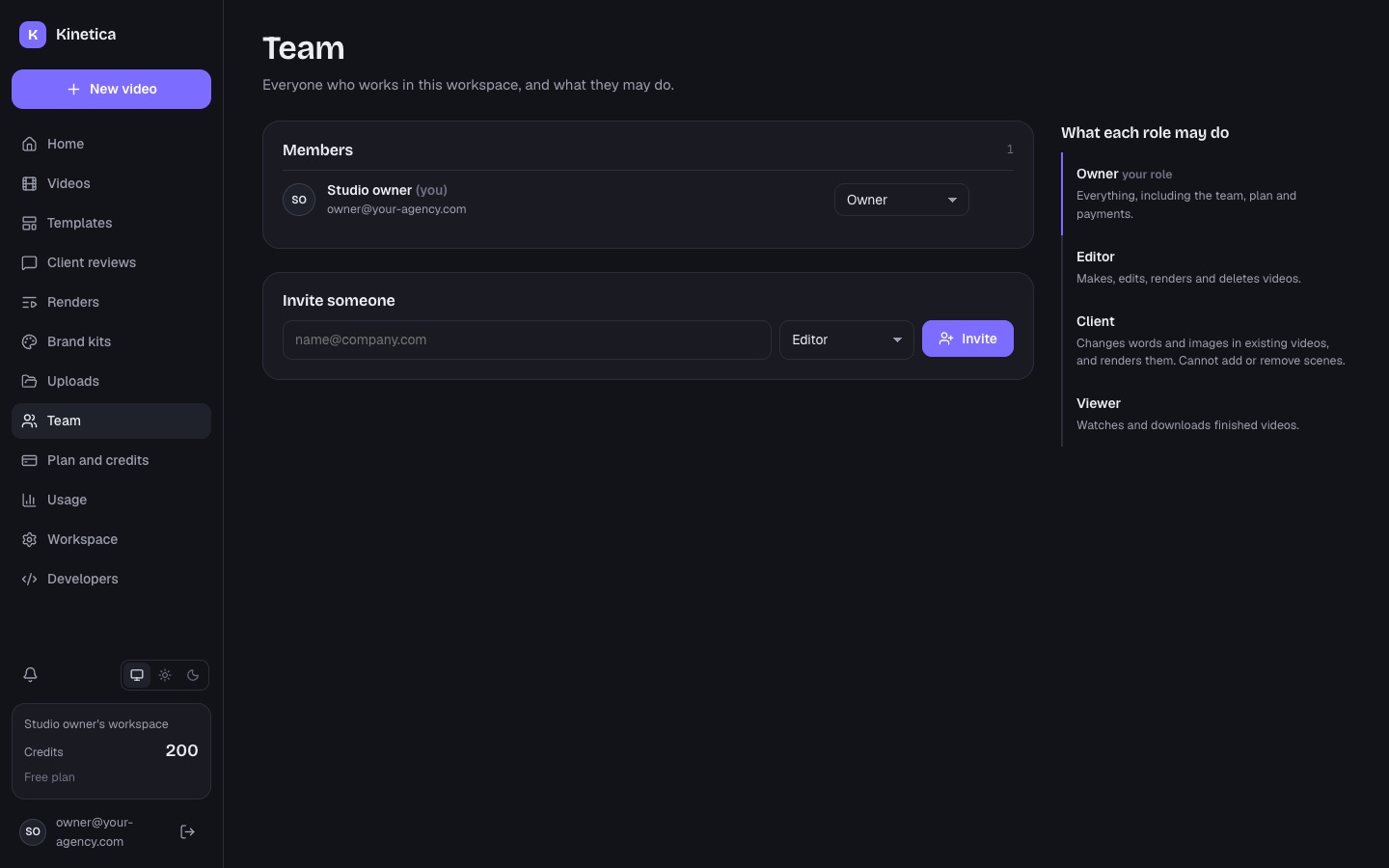
| Role | May do (web/src/pages/shared.tsx) |
|---|---|
| Owner | Everything, including the team, plan and payments, API keys and webhooks |
| Editor | Makes, edits, renders and deletes videos |
| Client | Changes words and images in existing videos, and renders them. Cannot add or remove scenes. |
| Viewer | Watches and downloads finished videos |
Staff accounts are your own people: created in the console (Users, "Invite staff", or create-user.js --staff), they can open every workspace. Console team members (the operator side) are separate: see Console team.